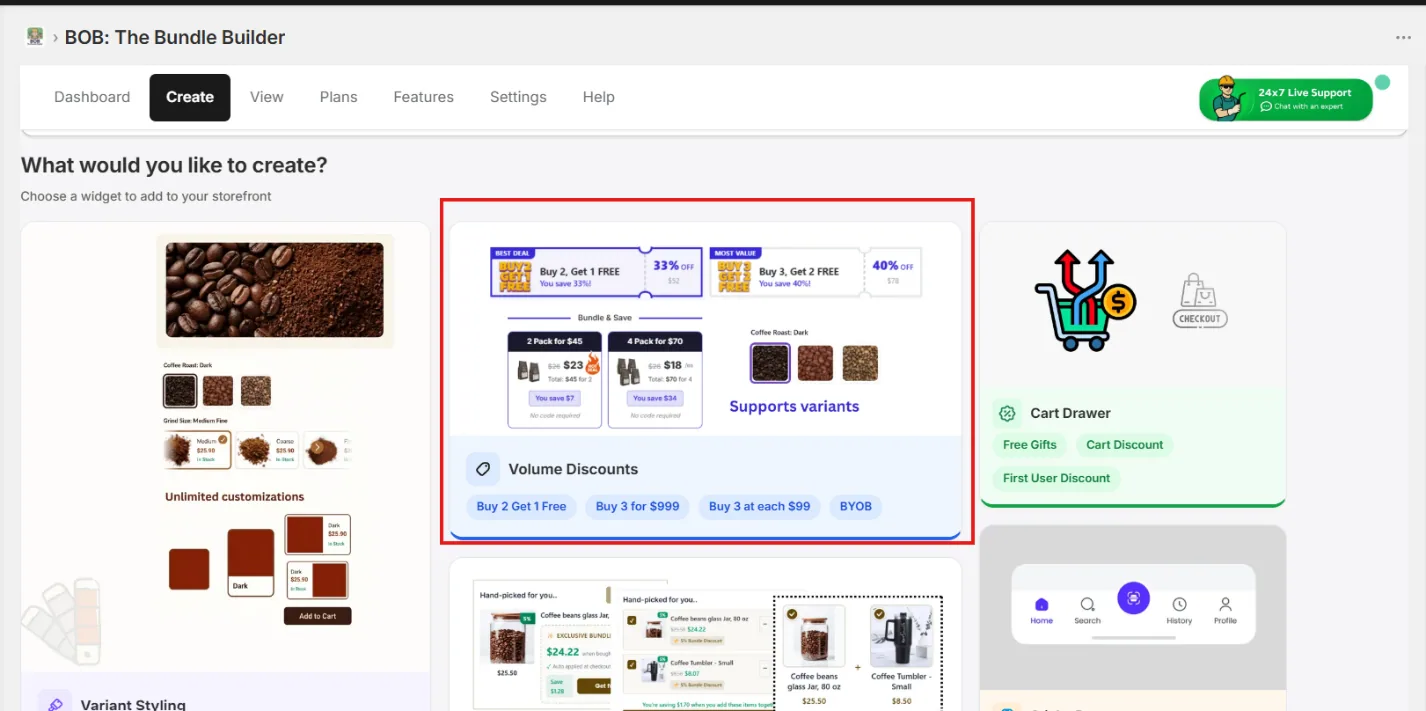
1. Open Volume Discounts
From the Create tab, select Volume Discounts.
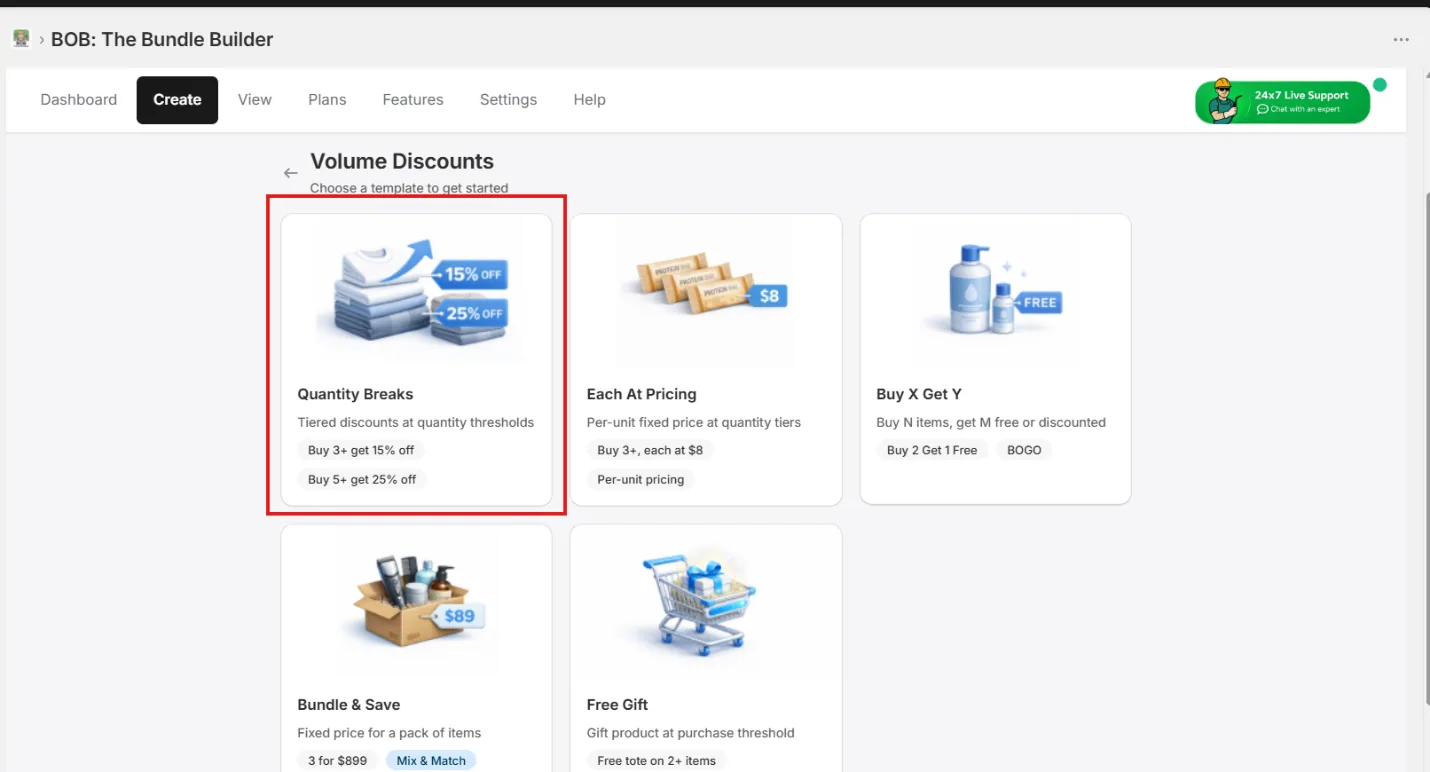
2. Choose a discount strategy
BOB ships with ready-made templates so you can launch in a few clicks: Classic Quantity Breaks, Fixed Bundles, Buy X Get Y, and Conditional Free Gifts.
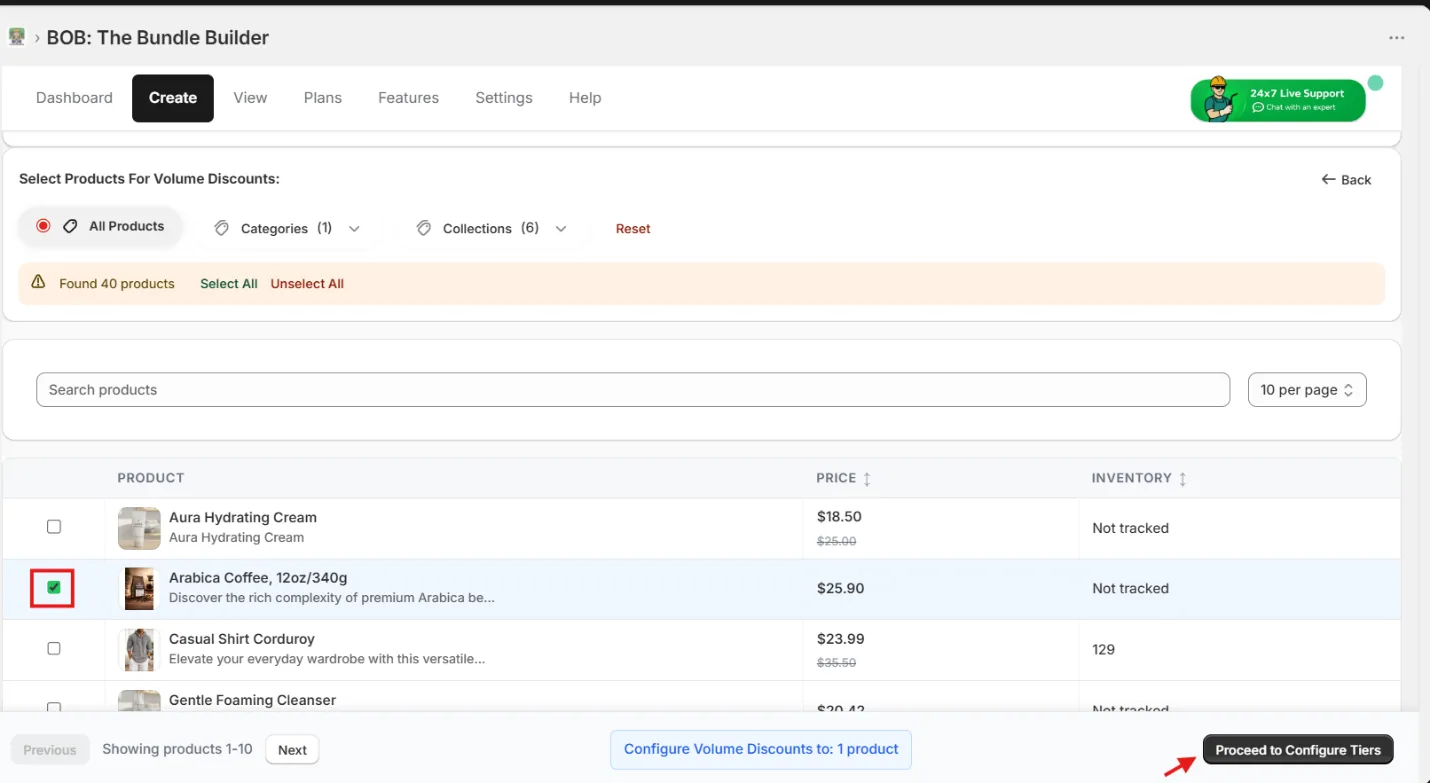
3. Select the products
Pick every product the offer should apply to.
Pro-Tip: Use the Collections / Categories filter and click Select All to add a whole catalog slice in one pass.
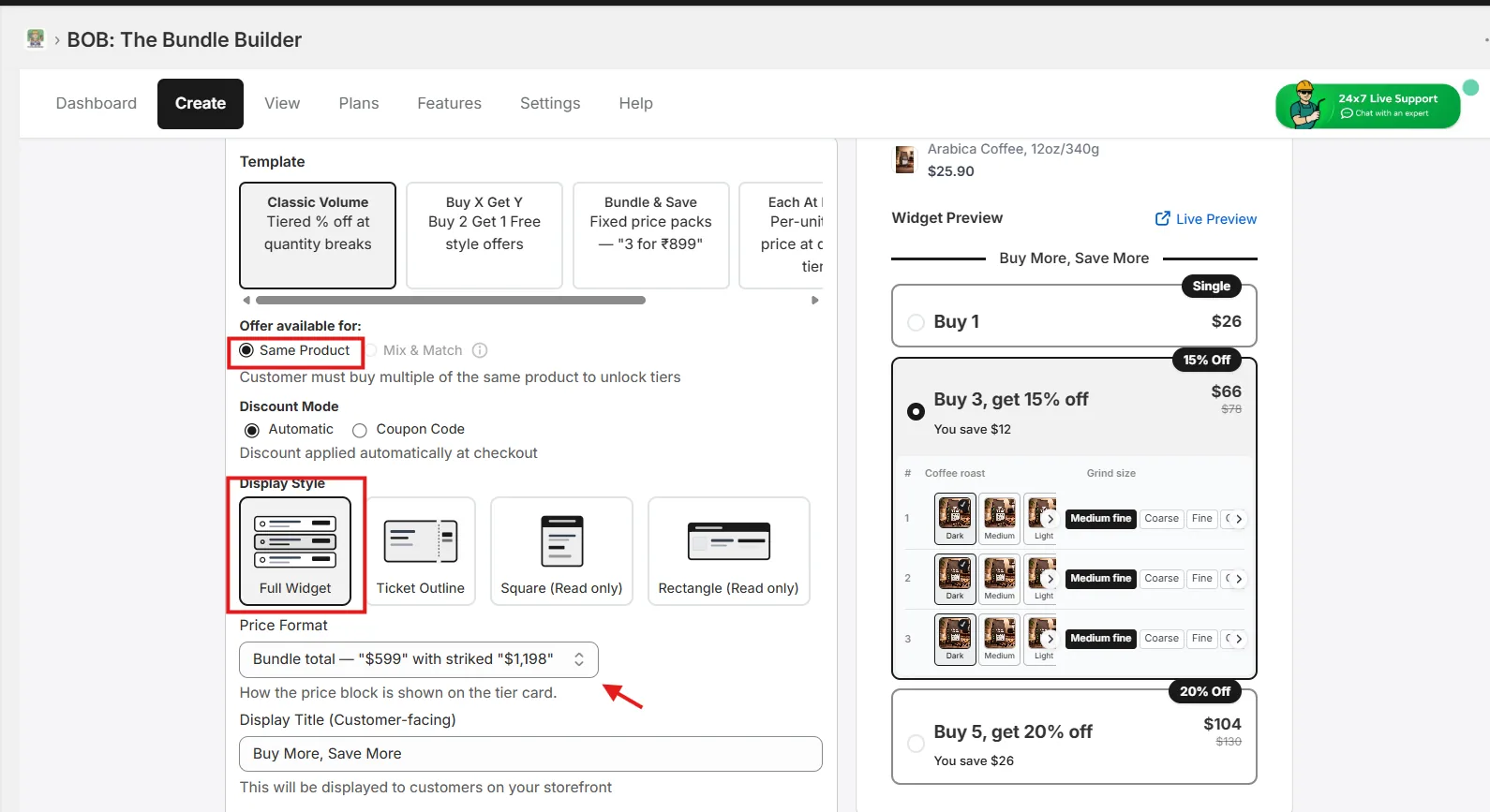
4. Pick a display style
Choose how the offer renders on the product page:
- Full-Widget — variant selection lives inside the offer widget. Best clarity and convenience for shoppers.
- Ticket-Outline — read-only offer with a modern feel, great for younger audiences.
- Square Outline — read-only, classic look that emphasises savings.
- Rectangle Outline — read-only, fits mobile carousel UX perfectly.
Pick a price format — Bundle Total or Per-each — based on what reads more clearly for your offer.
5. Configure tiers and messaging
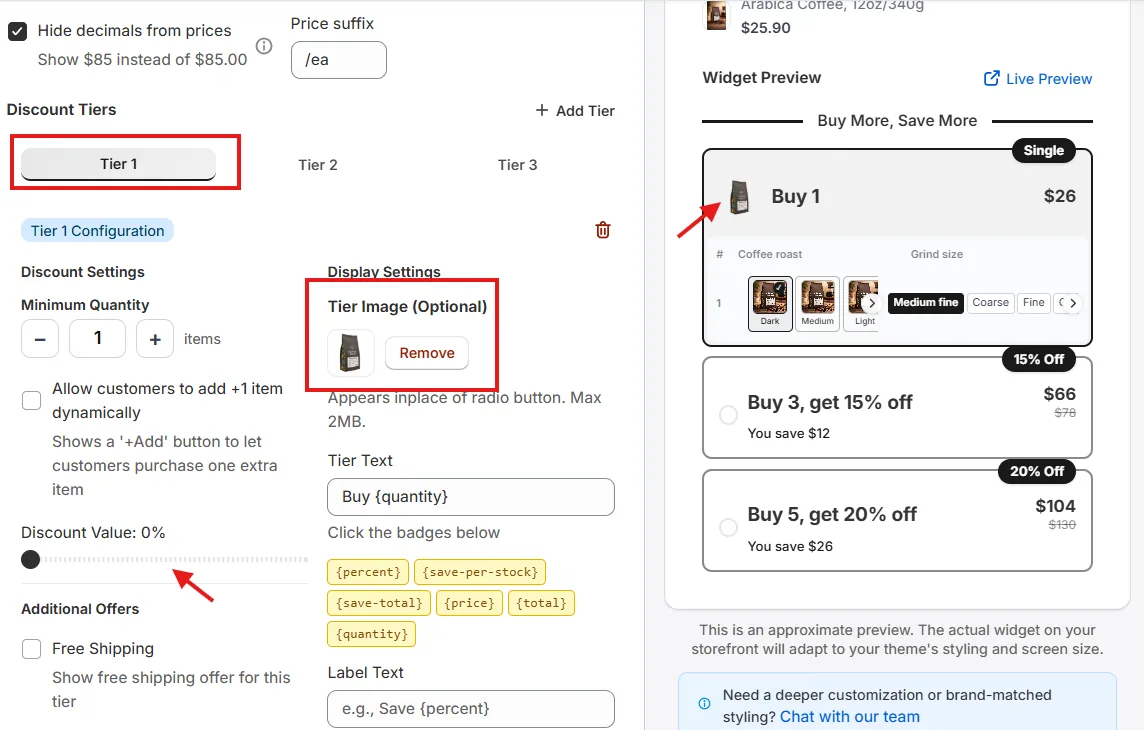
Add or remove tiers to match your offer buckets — keep it to 3 tiers where possible. Use tier images for visual impact and customise the three text slots: Tier Text (primary), Label Text (secondary), and Tag Text (overlayed on the bubble/ribbon tag).
Pro-Tip: Use Text-Chips like
{percent}to keep messaging dynamic. For example,{percent} offrenders as15% Offon the storefront.
6. Style variants (Full-Widget only)
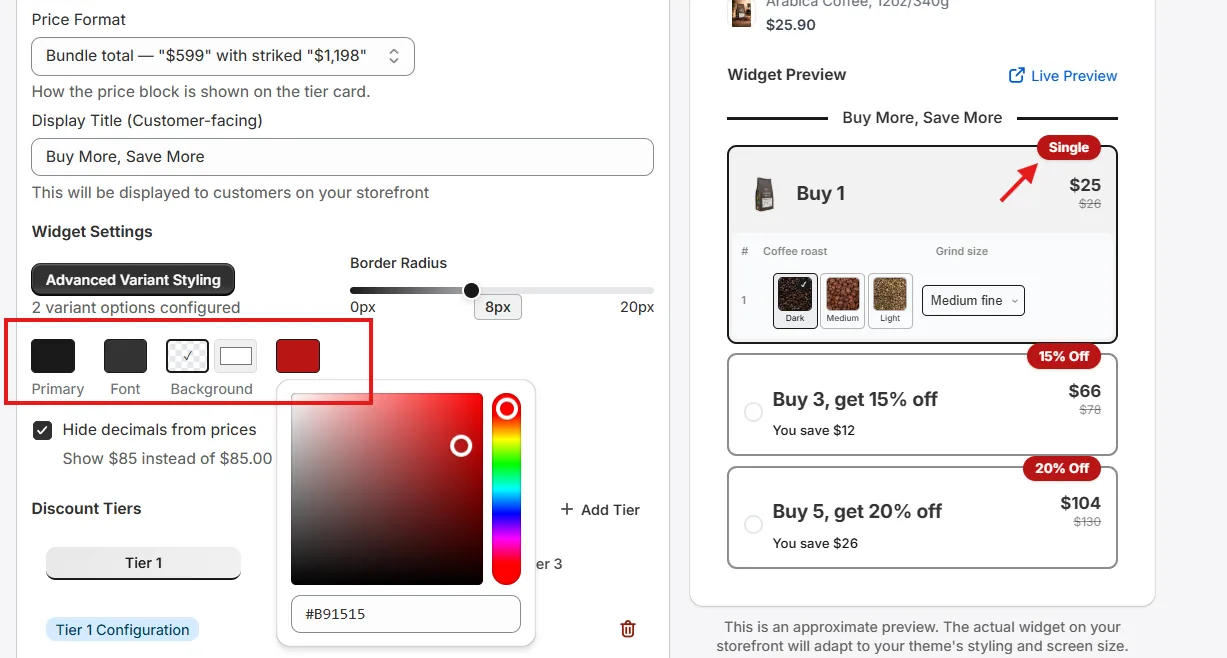
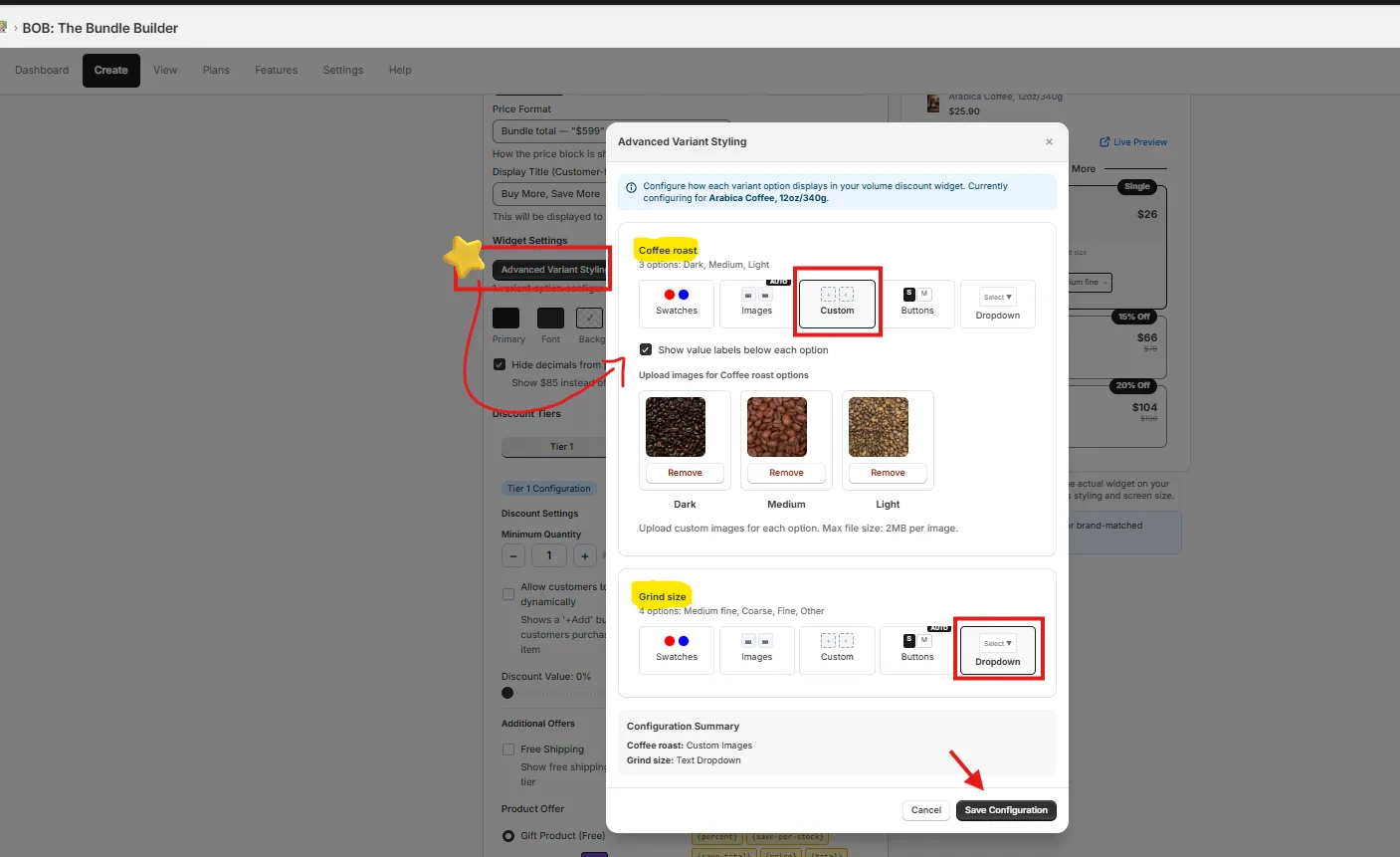
Click Advanced Variant Styling in Widget Settings to style the variant pickers inside the widget.
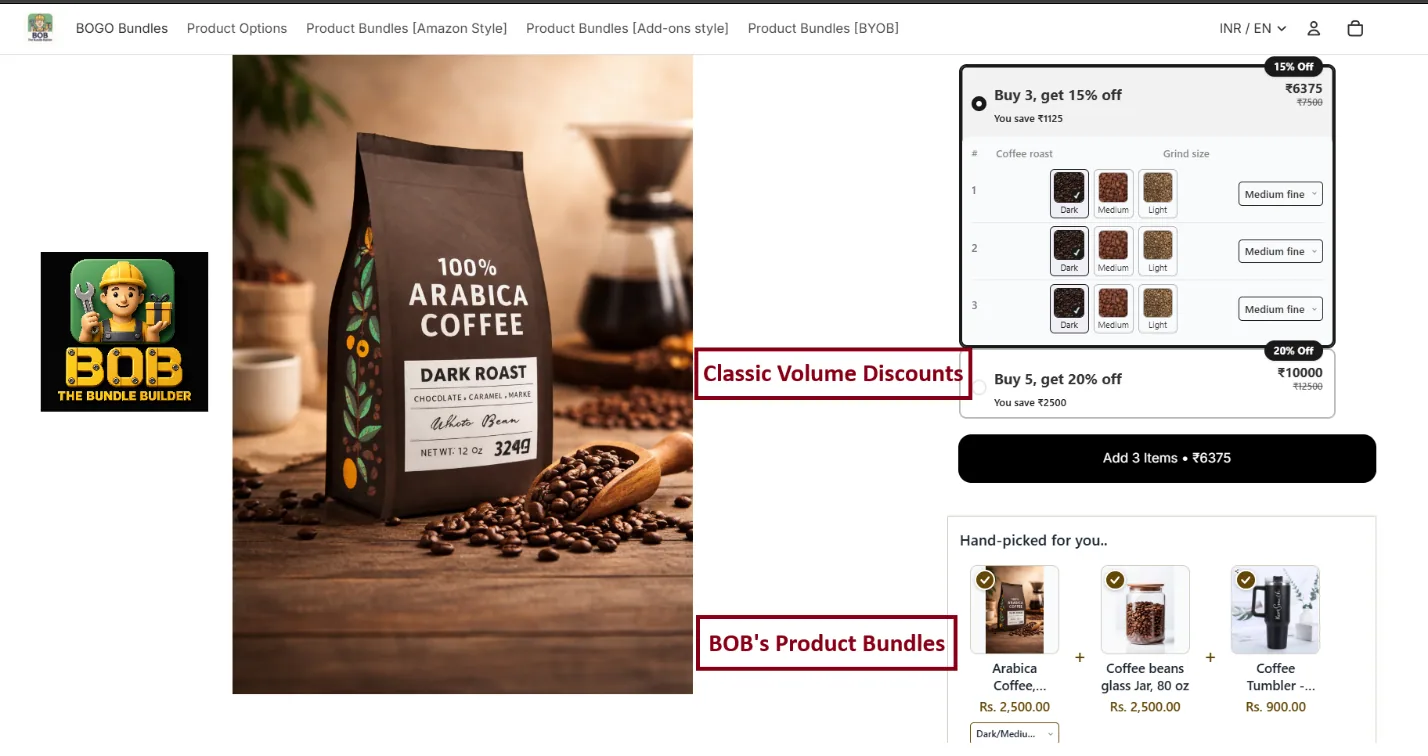
In this example, Arabica Coffee, 12oz uses custom images for the Roast variants (Dark, Medium, Light) and a text dropdown for Grind Size (Medium-Fine, Coarse, Fine).
7. Add an internal title
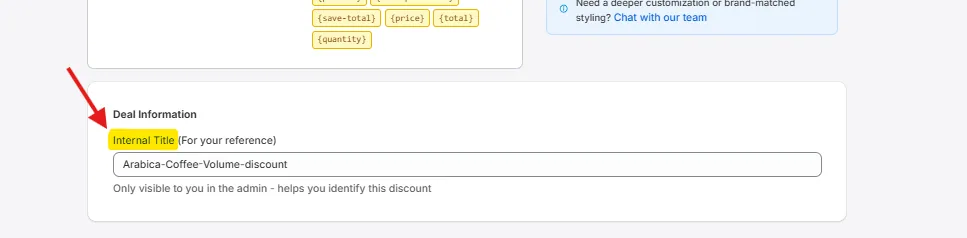
Set an internal title so you can find this offer from the View page when you publish or save as draft.
8. Publish to the storefront
After publishing, the volume discount widget appears above the Add to Cart button — multiple tiers with the product's variants/options available at each quantity.
Optional: match your store's theme
Customise the template further with custom colors per element (tags, font color, primary, background). Font auto-syncs from your theme.