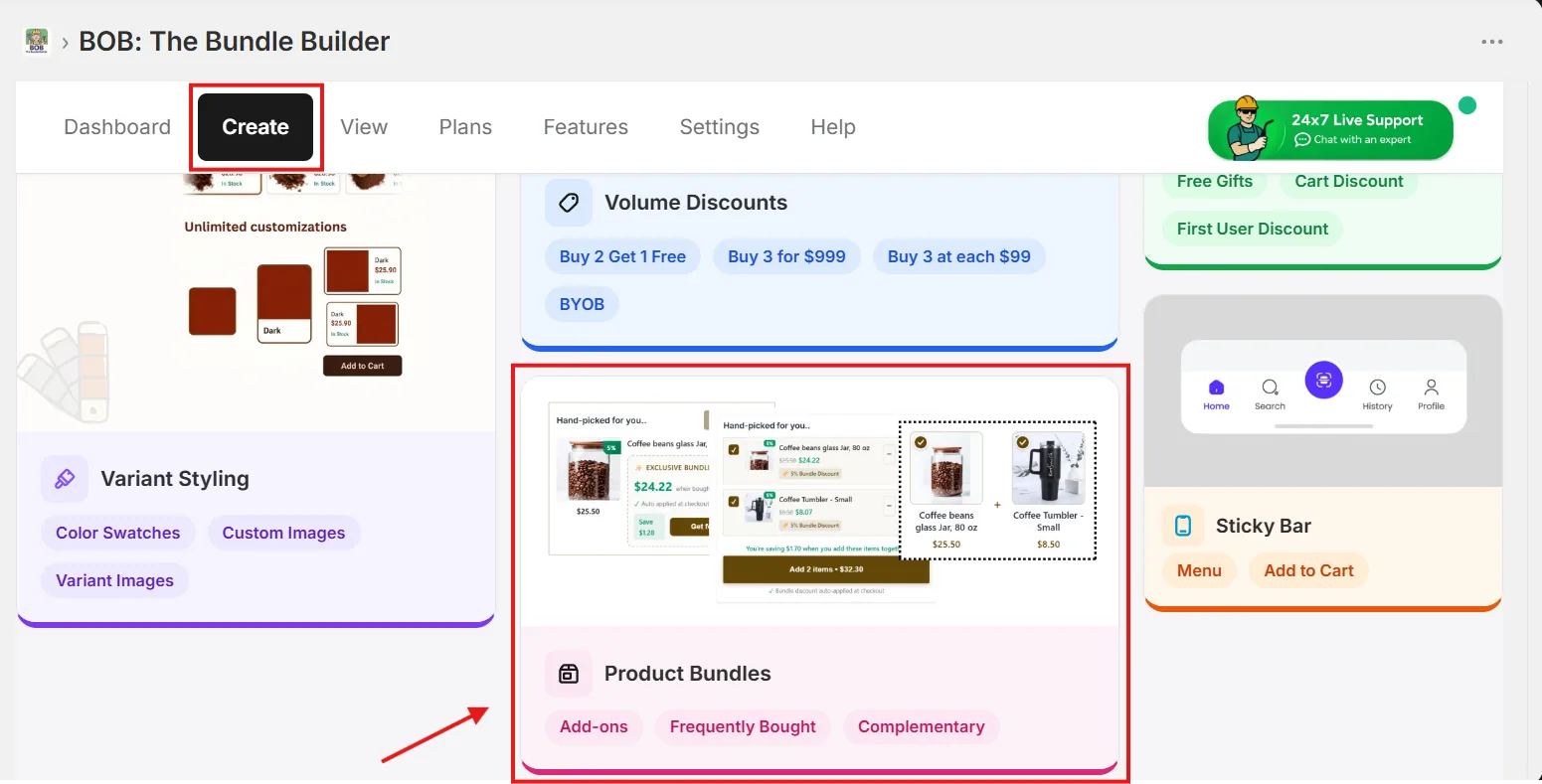
1. Open Product Bundles
From the Create tab, choose Product Bundles.
2. Select the primary products
Pick the products whose storefront product pages should show the bundle widget.
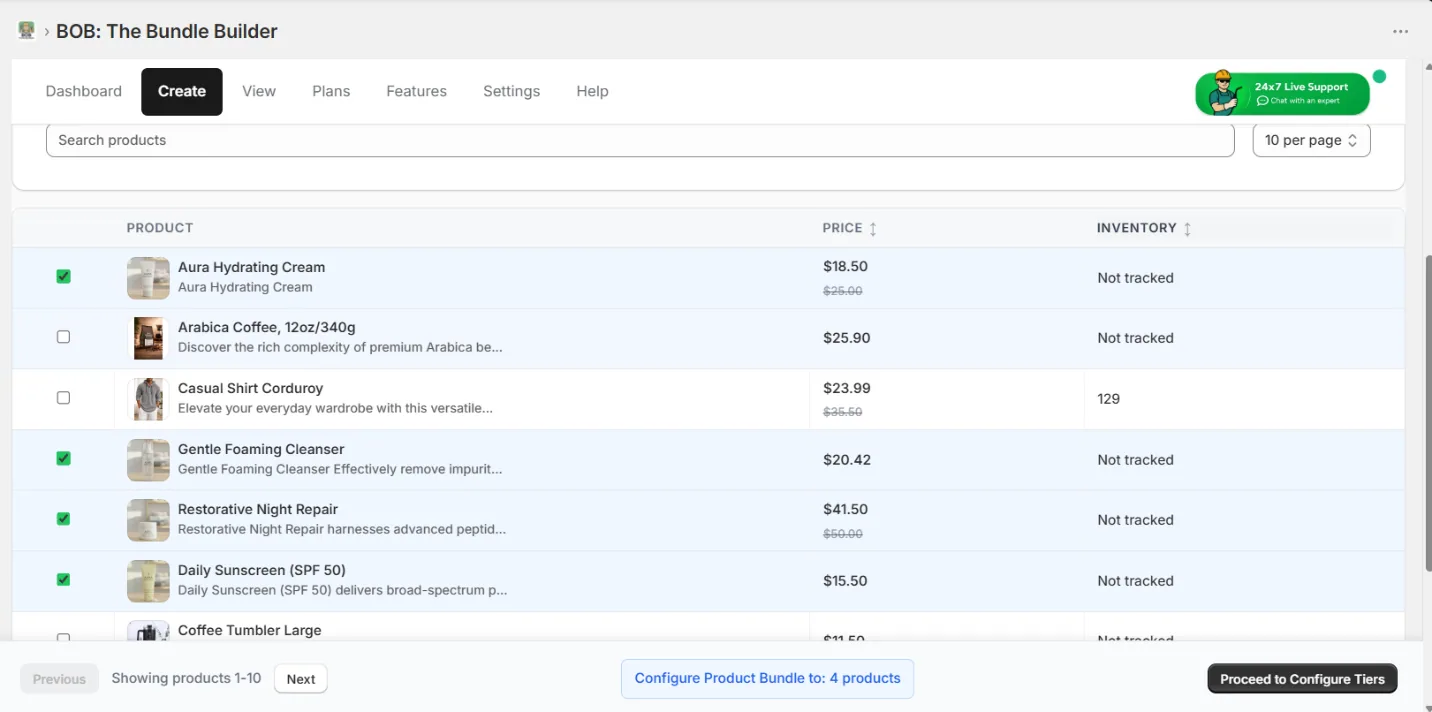
3. Choose a recommendation strategy
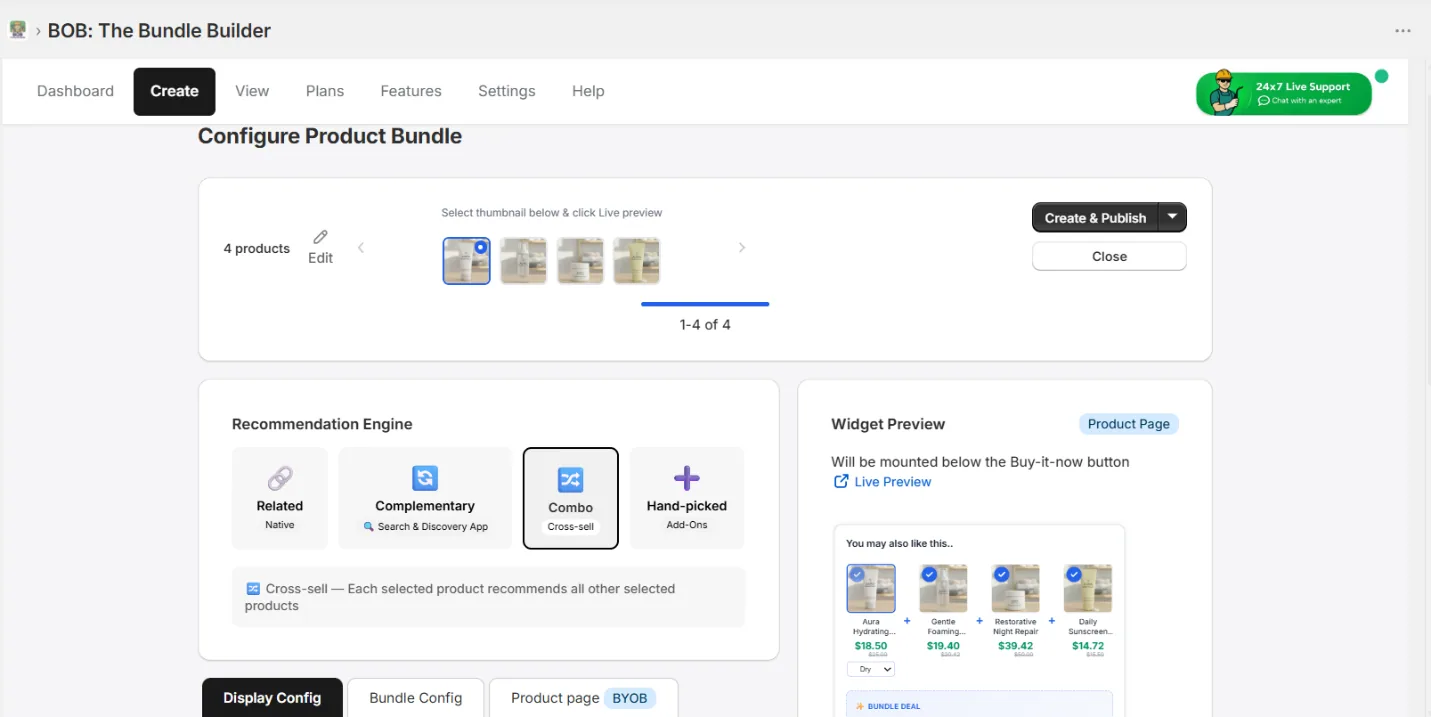
BOB combines bundle products in four ways:
- Related — Bundle with Shopify's AI related products for each selected product.
- Complementary — Bundle with complementary products configured via Shopify's Search & Discovery app.
- Combo — Combine all the selected products into a single bundle that appears identically on every selected product page (uniform shopper experience). Used in this example.
- Hand-Picked — Manually choose the bundle list that should appear on every selected product page. Great for category add-ons (e.g. charging cables / cases for a phone series).
4. Pick a bundle template
Three primary templates ship with BOB:
- Single Landscape — focused, high-conversion layout for Buy X Get Y style upsells of one complementary product.
- Amazon Style — the classic Frequently Bought Together layout. Works for most cases.
- Vertical Stack — classic add-ons template, mobile-friendly when listing several products.
5. Configure bundle discounts
Use the Bundle Config tab to set discounts when shoppers buy the bundle. Toggle discount eligibility independently for Anchor products (selected products) and Recommendation products (from the recommendation engine).
Note: For Combo recommendations, anchor and recommendation products are the same set.
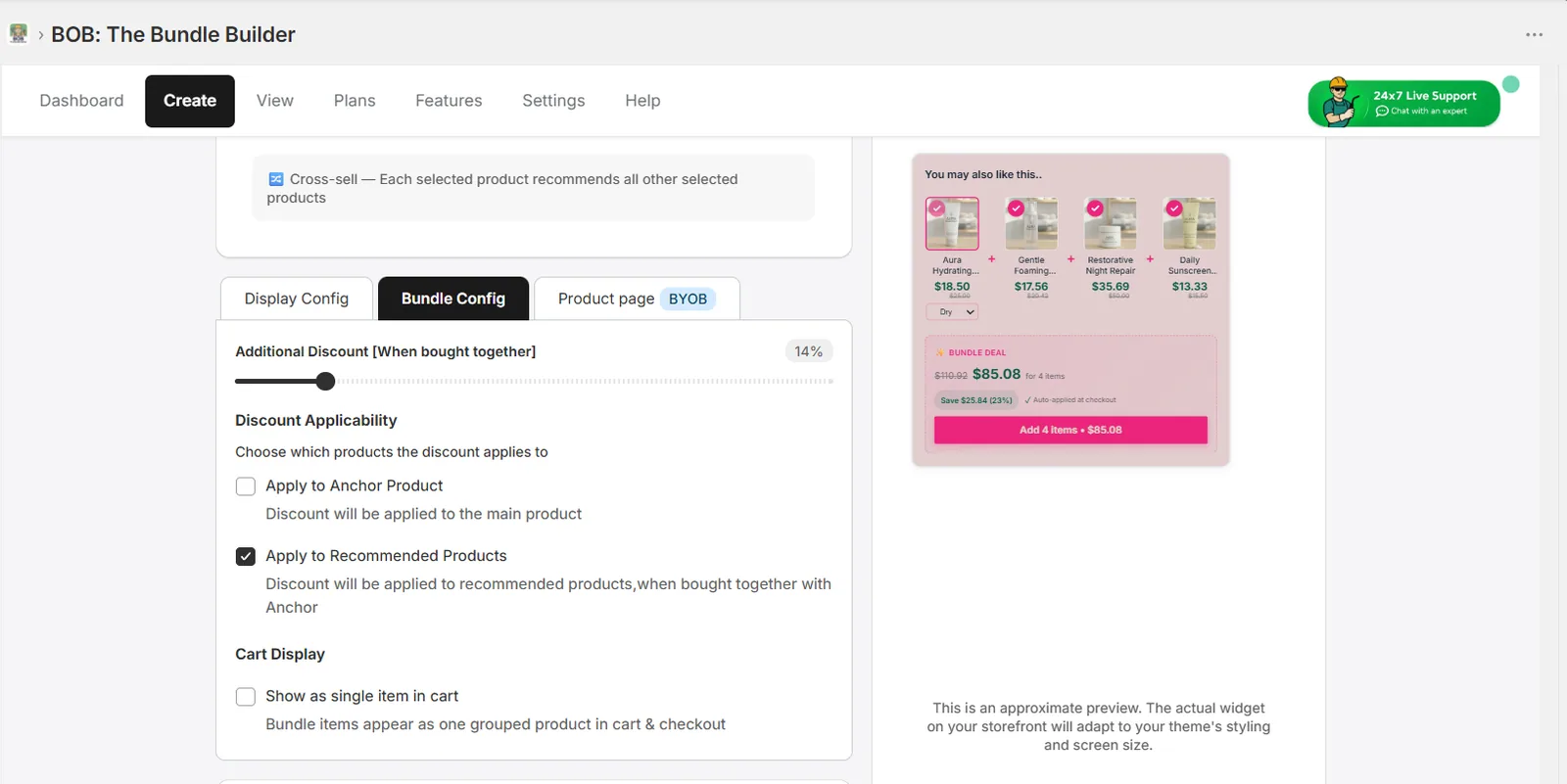
6. Cart display
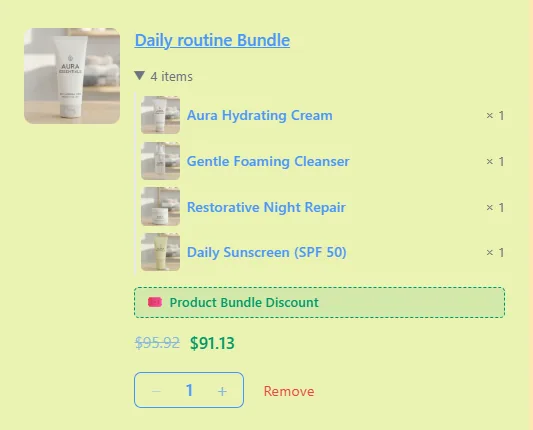
Show the bundle as a single cart line item with a custom Bundle Title and image. Shoppers can expand it to see each product and its quantity inside the cart drawer or cart page.
7. Name and save
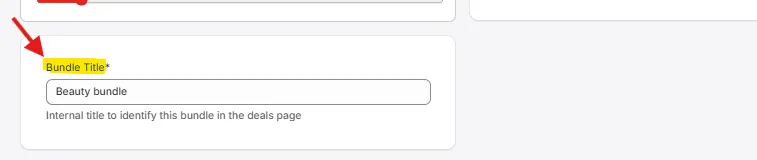
Set an internal Bundle Title so you can find the bundle later from the View tab, then save and close the config.
See it live
Check BOB's demo store to view each template on real product pages:
- Single Landscape product bundle
- Amazon Style product bundle
- Vertical Stack (add-ons style) product bundle